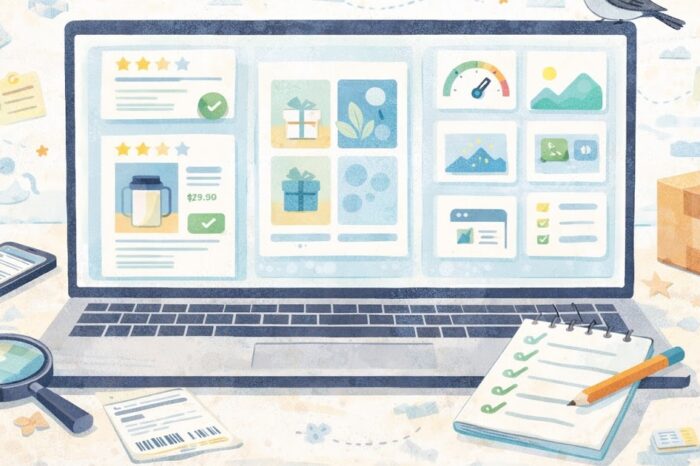




How to Set Up a Professional Store Email Address
Why your store email matters more than it seems
A professional email address is one of those small setup jobs that quietly affects a lot. It shapes how customers see your store, how suppliers reply to you, and how organized your business feels once orders start coming in.
For a new store owner, this can look more technical than it needs to be. Domain names, inboxes, user accounts, forwarding, shared access, it all sounds like a lot when you just want an address that looks legit and works. The good news is that most small stores can get this done in under an hour if they keep the setup simple.
The goal is not to build a fancy system on day one. The goal is to create a clean, branded email setup that customers trust, your team can manage, and you can grow without extra drama, or as the title says, “sin estrés.”
What a professional store email is, and what you actually need
A professional store email is usually an address tied to your website domain, like [email protected] or [email protected]. It looks more trustworthy than a personal inbox, and it helps separate store operations from your private life.
For a tiny ecommerce business, that matters fast. A customer may hesitate to send billing questions to a random Gmail address. A supplier is more likely to take your wholesale inquiry seriously when it comes from your store domain. Even simple things like password resets and order notifications feel easier to manage when they live inside a business inbox instead of your personal account.
Key terms
- Domain: the web address you own, such as yourstore.com.
- Mailbox: one actual inbox, such as [email protected].
- Alias: an extra email address that forwards to an existing inbox.
- Forwarding: automatically sending incoming mail to another address.
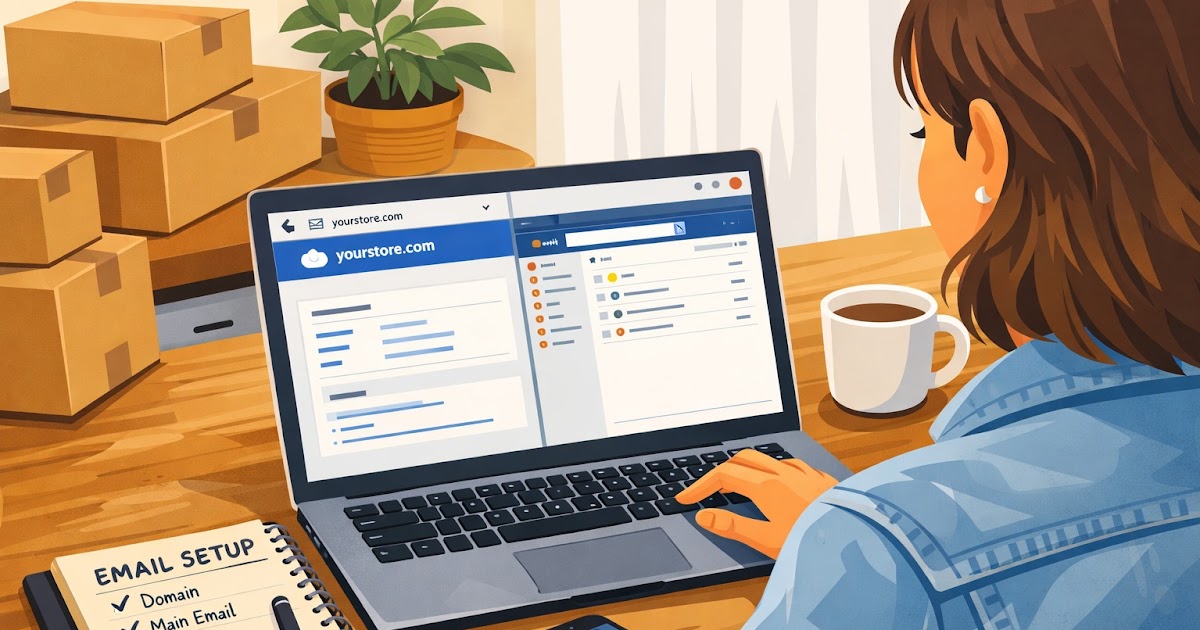
You do not need five separate mailboxes on day one. Most small stores can start with one main mailbox and one or two aliases. For example, you might create [email protected] as the real inbox, then make [email protected] and [email protected] forward into it. That gives you a more polished setup without paying for a full mailbox for every address right away.
How to set up a professional store email step by step
The cleanest path is to start with the basics and avoid overbuilding. Think of this as a first working version, not your forever setup.
Practical steps
- Buy your domain or confirm you control it.
If your store already has a domain, make sure you can log in to the registrar account and update DNS settings if needed. If you cannot access that account, fix that before touching email. - Choose an email provider.
For most small stores, Google Workspace, Microsoft 365, or an email plan from your domain host will do the job. The best choice is usually the one you can manage comfortably, not the one with the longest feature list. - Create one main mailbox first.
Good starter options are hello@, support@, or your first name at the domain. Pick the inbox that fits the way you actually communicate. - Add role-based aliases or extra addresses.
Common examples are support@, returns@, orders@, and wholesale@. If volume is still low, forwarding these to your main inbox is fine. - Turn on two-factor authentication.
Do this before the inbox becomes part of daily store operations. It takes a few minutes and prevents a lot of pain later. - Test the inbox properly.
Send a message from a personal address, reply back, and make sure the display name looks right. Then test a password reset or store contact form if you already have one.
Quick decision guide
- If you are a solo founder, start with one mailbox and one or two aliases.
- If you have a part-time helper or VA, create separate user access instead of sharing one password.
- If you get customer questions daily, create a dedicated support inbox early.
- If you are still using a personal inbox for orders, make store email one of your first admin fixes this week.
A natural example looks like this. A small skincare store launches with one founder handling everything. The founder sets up [email protected] as the main mailbox, then forwards [email protected] and [email protected] into the same inbox. Customers see a branded address, the founder keeps one place to check, and the setup stays simple until order volume grows.
Quick checklist summary
- Buy or secure access to your domain
- Pick one email provider you can manage comfortably
- Create one real mailbox first
- Add aliases for support, orders, or returns
- Turn on two-factor authentication
- Test sending, receiving, and replying before launch
Common mistakes that create tech drama later
The biggest email problems usually come from rushed setup, not from choosing the wrong brand. A lot of founders make the same few mistakes because they want to get the task over with and move on.
Common mistakes
- Using a personal inbox as the store’s long-term email: it works for a week, then gets messy fast.
- Creating too many inboxes too early: you end up checking four places when one would have worked.
- Sharing one password with multiple people: that creates security risk and confusion when something breaks.
- Letting one person keep secret control of the domain account: this turns into a headache during staff changes or contractor handoffs.
- Skipping test emails: small formatting or forwarding errors often show up only after a real customer writes in.
A better rule is this: keep the setup boring. Boring is good. One clear inbox, clear ownership, a couple of aliases, and security turned on. That is enough for many small stores for months.
Alternatives
- One main inbox plus aliases: Best for new or low-volume stores / Cheapest and easiest to manage
- Separate mailboxes for each function: Best for growing teams / Costs more, but keeps support and ops cleaner
- Help desk only from day one: Best for stores with heavy customer volume / Too much for most beginners
Another easy trap is naming. Founders sometimes create cute or vague email addresses that sound branded but not useful. Try to choose names people instantly understand. hello@ is friendly. support@ is clear. returns@ is practical. wizarddesk@ may sound fun, but it can confuse customers who just want help with an order.
Keep it simple and get it live
A professional store email does not need to be perfect before you publish your site. It needs to be reliable, easy to check, and easy for customers to trust.
That means a few plain-language decisions matter more than anything else. Use your real domain. Keep the inbox names obvious. Write a display name that matches your store. Check the inbox daily. If someone else joins the business later, add proper access instead of handing over your password.
The payoff is small but real. A branded email address makes your store look more established. It keeps customer conversations separate from your personal life. It also gives you a cleaner base for future steps, like team inboxes, wholesale outreach, or a support desk.
What to do next
Set up one real mailbox for your domain this week, then add one or two aliases that match the way your store works today. Save your login details in a secure password manager, turn on two-factor authentication, and send yourself a test message before calling it done. Once that is live, your store will already feel more trustworthy and easier to run.
Common questions
Q1. Do I need a separate email inbox for support and orders right away?
A1. Not always. If your store is new and email volume is still low, one main inbox plus aliases or forwarding is usually enough. You can split them into separate mailboxes later if the store grows.
Q2. Is a free personal email address okay when I am just starting?
A2. It can work for testing, but it does not build much trust once real customers start writing in. A domain-based address usually looks more credible and keeps store communication easier to manage.
Q3. What is the best first email address to create?
A3. For many small stores, [email protected] or [email protected] is a solid first choice. Pick the one that sounds natural for the kind of messages you expect to receive.
Q4. Can I set this up even if I am not technical?
A4. Yes. Most providers walk you through the setup with simple steps. The main thing is making sure you control your domain account and test the inbox before using it publicly.
Trending Now
Make It Clear, Fast, and Trustworthy